

Folocard iOS & Android offers a free & unlimited path to exporting details from contacts to a spreadsheet. Below we will describe how to convert your stack of business cards into a spreadsheet.
Update: In Oct 2021 version 0.8.09 was published which includes a new Email template option 'SKIP COMPOSE'. This feature prevents the triggering of the Email template from composing a draft in your Email app. Enabling this feature significantly speeds up the process of scanning business cards in bulk into excel.

Simply;
(1) enable the 'SKIP COMPOSE',
(2) scan business cards,
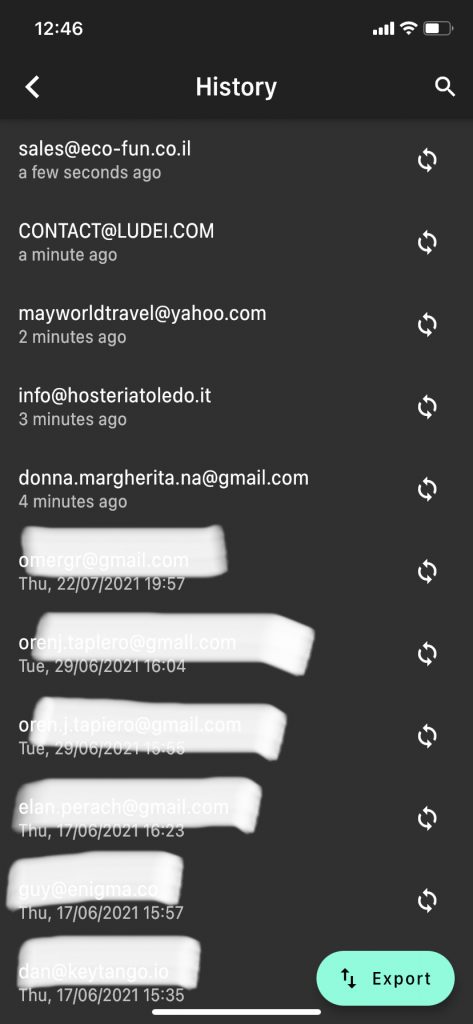
(3) go to the history page,
(4) click export,
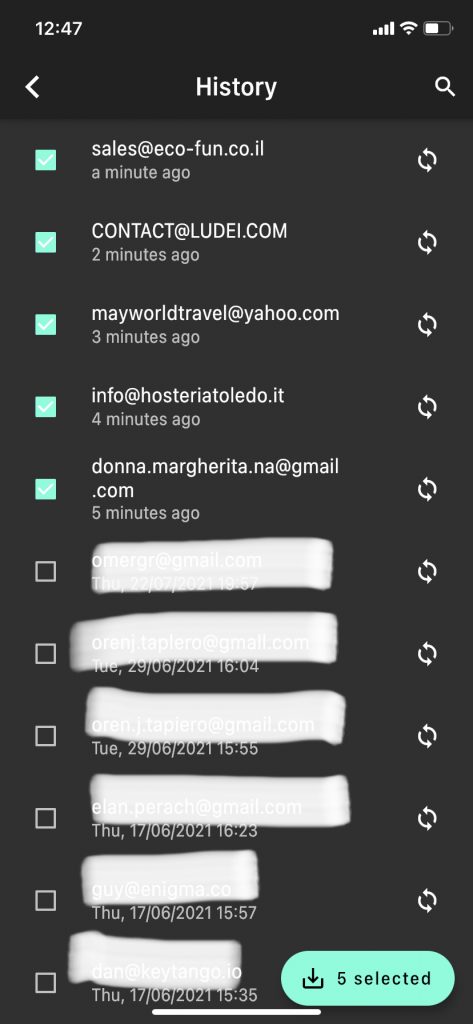
(5) select the cards,
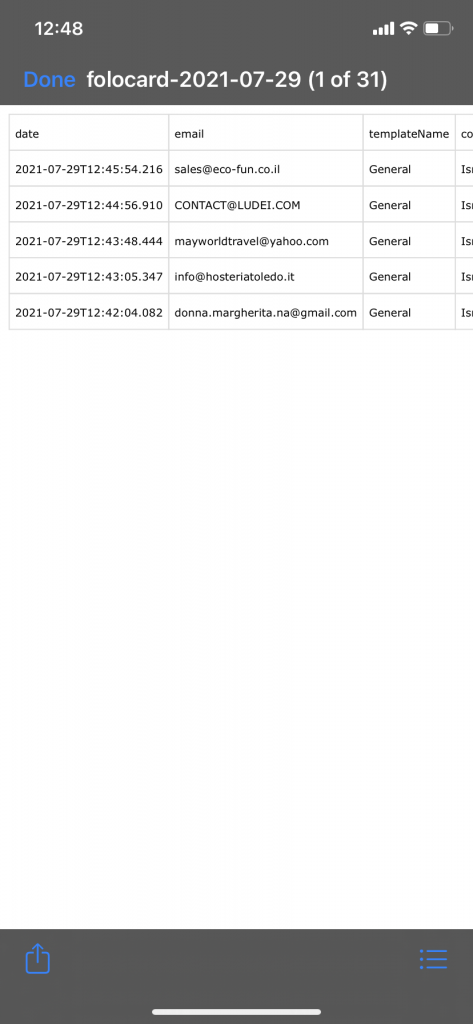
(6) click export again to trigger the '.CSV' file save prompt
Business Card to Spreadsheet
If you are looking for a simple and free business card to excel solution, you have arrived. Once you execute the free business card scanner feature, Folocard collects all the text grabbed from the OCR engine using the latest in Machine Vision (AI Engine). This information is saved under each follow-up card in the ‘history’ screen within the app.
In order to get the details into a spreadsheet, such as Microsoft Office: Excel or Google Spreadsheets, Apple Numbers, Airtable etc.., you need to first download Folocard and scan a business card, then:


- Go to the ‘history’ screen.
- Press the ‘export’ button on the bottom right.
- Select each item you want (a counter is showing the number of items selected)
- And hit the ‘export’ button again.
- This will launch a prompt on where to send or attach the resulting Comma Separated Value (.csv) file. Such as emailing yourself or saving to your device or cloud storage (google drive).
NOTE: our AI text extraction software actually runs on the device locally, we do not send the image for processing in a server (and why the Folocard app is over 100mb+). This protects your privacy, as business card scanner apps have a nasty habit of collecting massive databases of contacts without their users explicit consent. In fact you can even scan cards and export to .csv when on airplane mode.
Business Card to Excel Template
Folocard further adds several data points for convenience, these headers will be available in the exported file:
- First Name
- URL
- Phone
- Notes: This includes all OCR results. Herein you will find extra interesting data points, in
raw text, such as the: Title, Company Name, Address, Social Network usernames, etc.. - Follow Up Template name (note we do not see the subject or body data of the emails, for privacy reasons.
- Time the follow-up email was generated (we do not know when/if the email draft was sent).
- Location (if enabled) of when the follow-up email was generated.
Free Business Card Scanner to Excel
Not all business card scanner apps give you the entire solution for free and without limits. With Folocard this is a core feature that is again, unlimited & free. It also works offline, along with the business card scan and contact saving features.
You can get Folocard Offline on Google Play and Apple App Store.
The offline scanning, read; doesn’t require an active internet connection, the nature of the feature suggests that you can draft email follow-ups, save contacts, and export to .csv on a plane ride back from a conference. You can prepare your spreadsheet further while on the plane and be ready to import it into your CRM software upon landing.
Advanced: Workflow Automation w/ API
While exporting business card scanning to excel is a free feature, Folocard also has an advanced feature. This is a premium feature designed to enable automation of business cards to Salesforce happen. Folocard exposes an API via Zapier where you can set triggers to follow-up emails and directly feed business card scans into a spreadsheet like Google Sheets automatically. Zapier supports hundreds of solutions including most CRM software, databases, and other marketing automation SaaS products like Marketo.